Exceptional gifting. Our Samsung Galaxy gift guide features smartphones and wearables.
Last updated: November 21st, 2018 at 11:24 UTC+01:00
SamMobile has affiliate and sponsored partnerships, we may earn a commission.
Reading time: 3 minutes
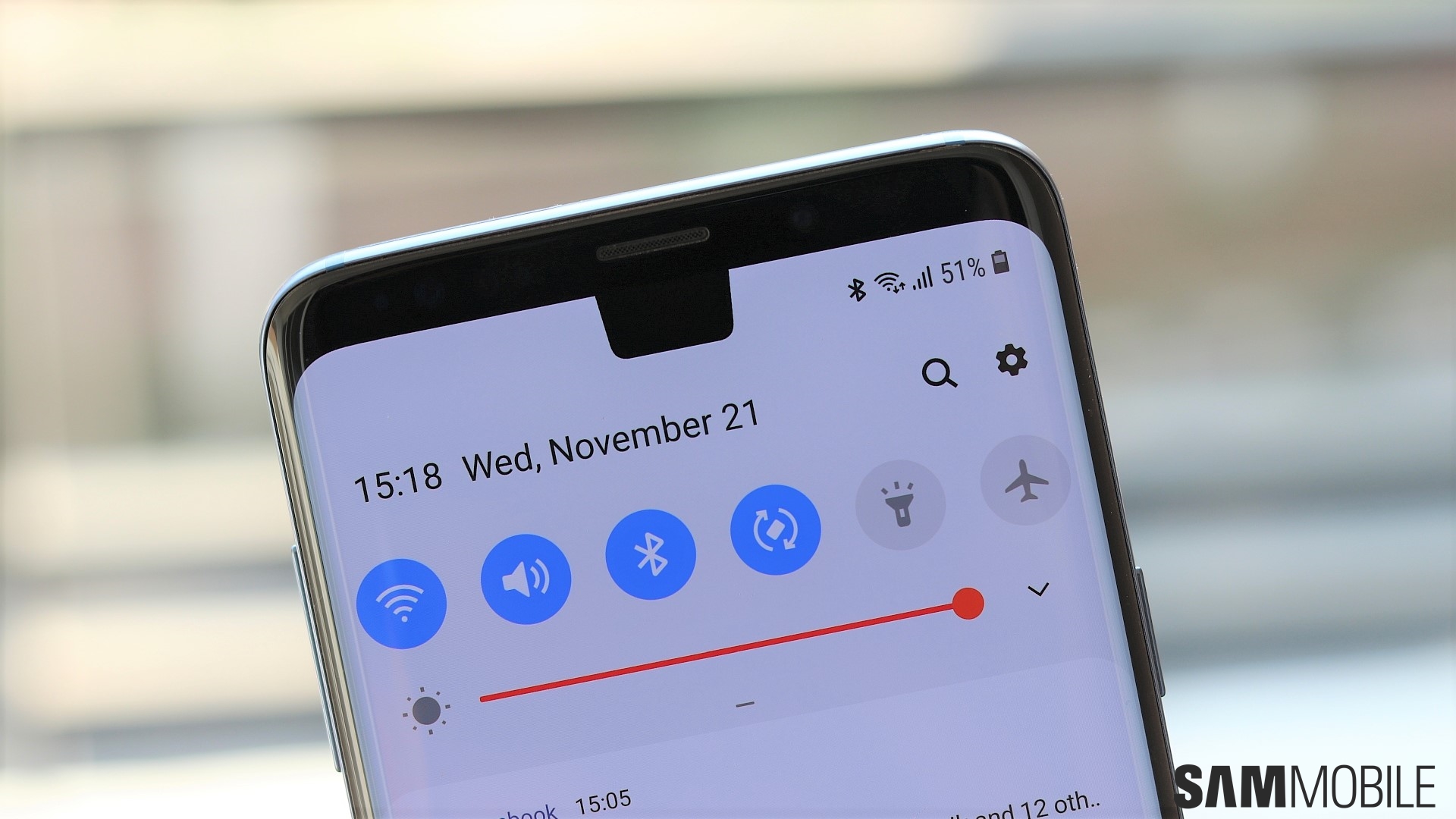
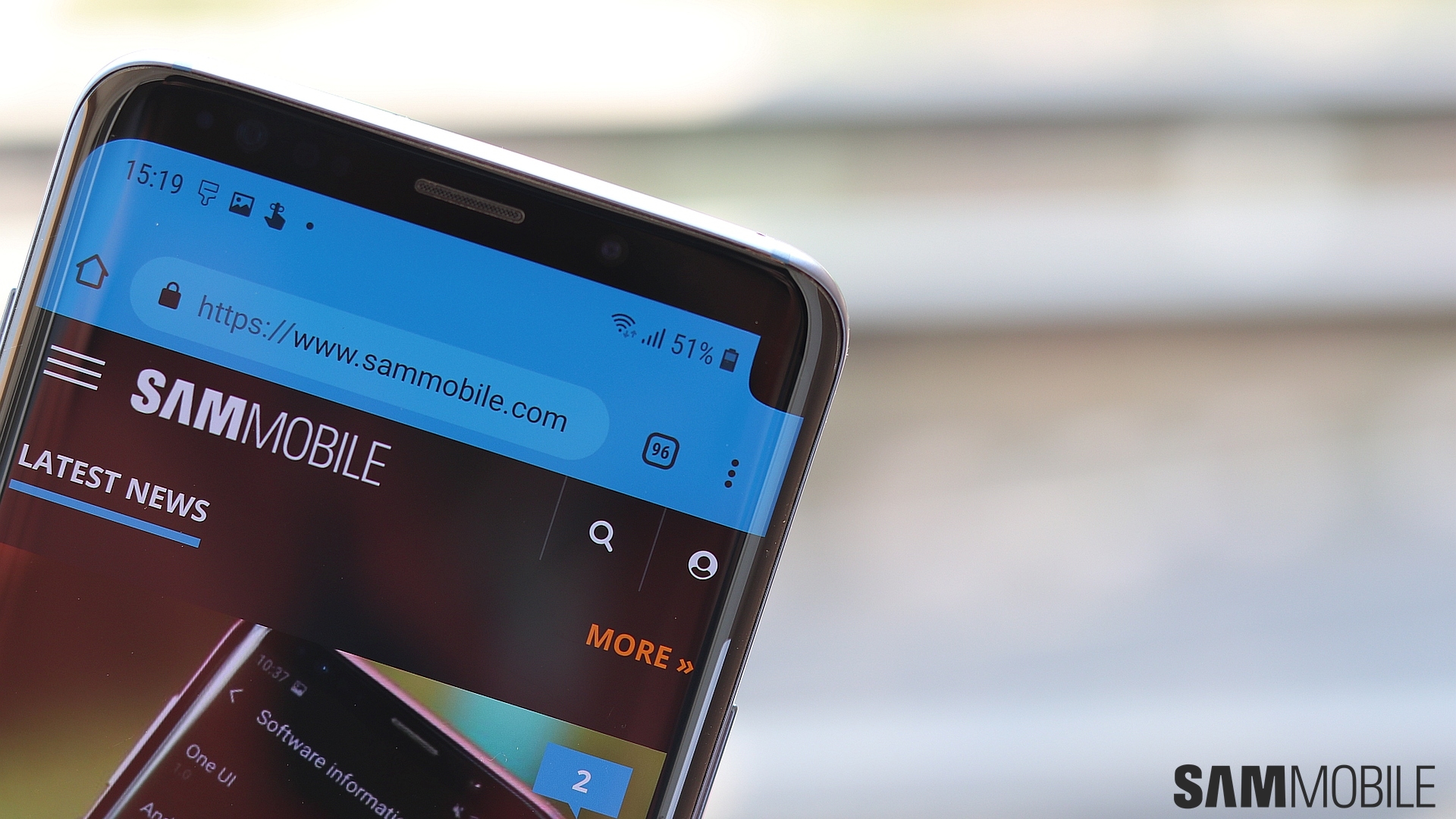
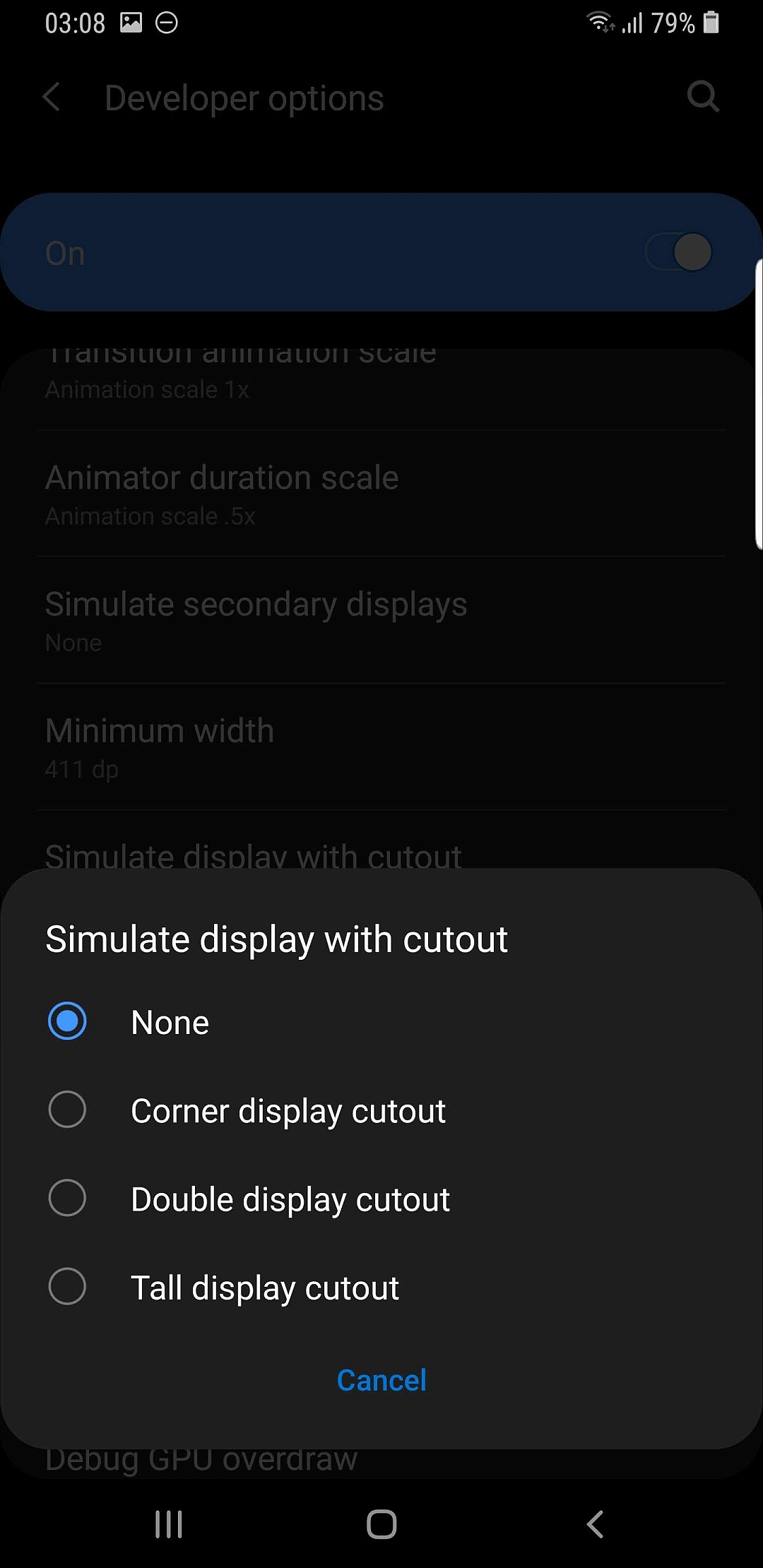
Google was quick to add official support for notches to Android. It even put up some rules for the number of notches a device can have. And to help developers design their apps with proper support for the various types of notches found on Android phones, Google added the option to simulate “display cutouts” to Android Pie. This option is also available on the Galaxy S9 Android Pie beta. There are three versions of the notch you can try out. It can be a single cutout in the top center of the display, a double cutout that adds notches at the top and bottom, and a corner cutout.
This last option is the most interesting here, because Samsung is expected to have at least one smartphone in 2019 with a notch or hole in the corner. It's also a good way to see how that Galaxy phone with a corner cutout might work. And, well, a chance to see just how non-Samsung phones with notches work. Spoiler alert: It's not pretty, and it will be sad to see Samsung embracing the notch in the coming months. Thankfully, the Night theme introduced with One UI will partly alleviate the problem.
To try out the Galaxy S9 notch, you will have to first enable the developer options menu in the phone's settings. To do this, open the Settings app, tap About phone, then tap Software information. Here, repeatedly tap the Build number field seven times until you get a small popup messaging saying developer mode has been turned on. You might be prompted to authenticate through whatever phone lock method you're using (pattern, PIN, fingerprint, etc) before developer mode is turned on.
Now that is done, go back to the first page of the Settings app, and scroll all the way down to the bottom to see a new Developer options option. Inside the developer options menu, scroll down to find the Simulate display with cutout option. Use this to select between the three cutout settings. To go back to normal, just select the None option.
Abhijeet's writing career started with guides for custom firmware for Samsung devices (including the original Galaxy S), and he moved to SamMobile in mid-2013 and worked up the ranks to Editor-in-chief. In addition to phones and mobile devices, his interests include gaming on both PC and console, PC hardware, and spending countless hours on YouTube watching videos on tech, movies, games, politics, and internet dramas.