Last updated: July 9th, 2026 at 15:06 UTC+02:00
SamMobile has affiliate and sponsored partnerships, we may earn a commission.
Some of them have improved designs as well.
Reading time: 2 minutes
Asif Iqbal Shaik / SamMobile
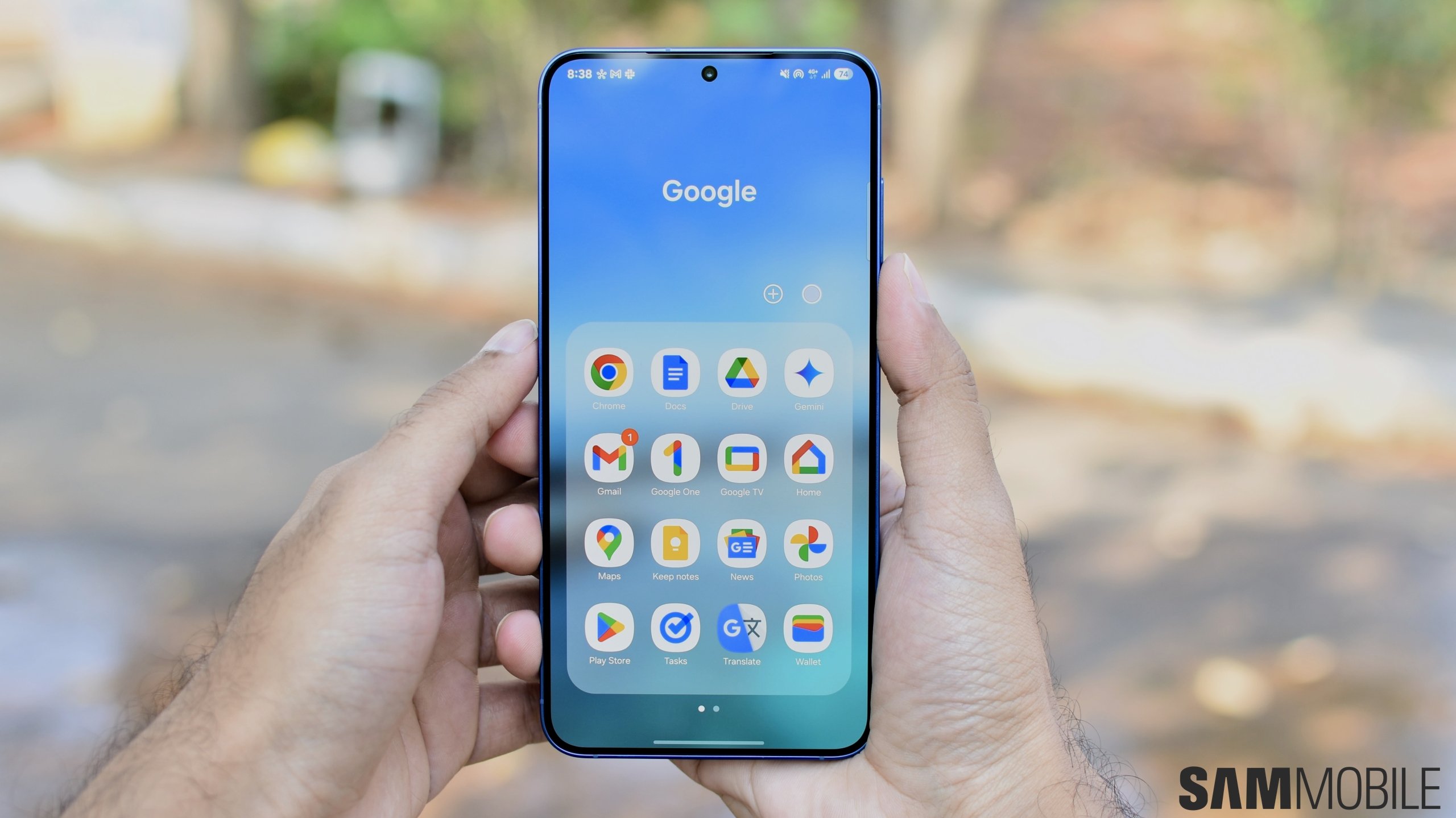
Google has released updates for several of its apps this week, and three of them bring new designs and feature improvements to Android phones and tablets, including Galaxy devices. If you have a Galaxy phone or tablet, make sure to update these apps to enjoy the latest improvements.
Chrome 150 for Android introduces a dedicated on-screen Back button for navigating to the previous page. You can find it in the three-dot menu. Previously, going back to the previous webpage required using the system Back button or a back swipe gesture, depending on your navigation method. This update also renames the ‘Add to Home screen’ option to ‘Install and create shortcut.’

Asif Iqbal Shaik / SamMobile
Back and Forward navigation buttons in the Google Chrome app for Android (July 2026) – Source: Asif Iqbal Shaik / SamMobile
Version 4.20 of the Google Home app introduces a new feature called ‘Suggested Automations’ to make smart home automation easier. The new section appears at the top of the screen and offers suggestions to help you quickly create automation routines for your Google Home-compatible smart home devices. These recommendations should be especially useful for users who are new to smart home automation, as they eliminate the need to create routines from scratch.

Asif Iqbal Shaik / SamMobile
New pill-shaped floating tab bar in the Google Photos app for Android (July 2026) – Source: Asif Iqbal Shaik / SamMobile
The latest version (7.82) of the Google Photos app introduces a new pill-shaped floating tab bar at the bottom of the screen. It features three tabs, Photos, Collections, and Create, along with a Search icon. The tab bar floats above the app’s content instead of being attached to the bottom edge of the screen. Its design is similar to the pill-shaped floating tab bars found in several Samsung stock apps running One UI 8.0 and newer.
To install the latest versions of these apps, open the Google Play Store and tap on your profile photo on the top right corner of the screen. Now, navigate to Manage apps and devices > All apps up to date > Check for updates and tap Update all.

Asif is a computer engineer turned technology journalist. He has been using Samsung phones since 2004, and his current smartphone is the Galaxy S23 Ultra. He loves headphones, mechanical keyboards, and PC hardware. When not writing about technology, he likes watching crime and science fiction movies and TV shows.